
Certificates for a whole batch, in eight steps
Design a certificate once, add your participants, and download one PDF per person. With Pro Pass, every certificate also carries a QR code that anyone can scan to check it. Everything is made in your browser.
- 25 certificates a month
- Small "Made with Pramaan" footer
- 200 certificates, no footer
- Several templates, register CSV
- 500 verified certificates a year
- QR verify pages, revoke, own ID prefix, print PDF, 300 dpi
1Activate your key
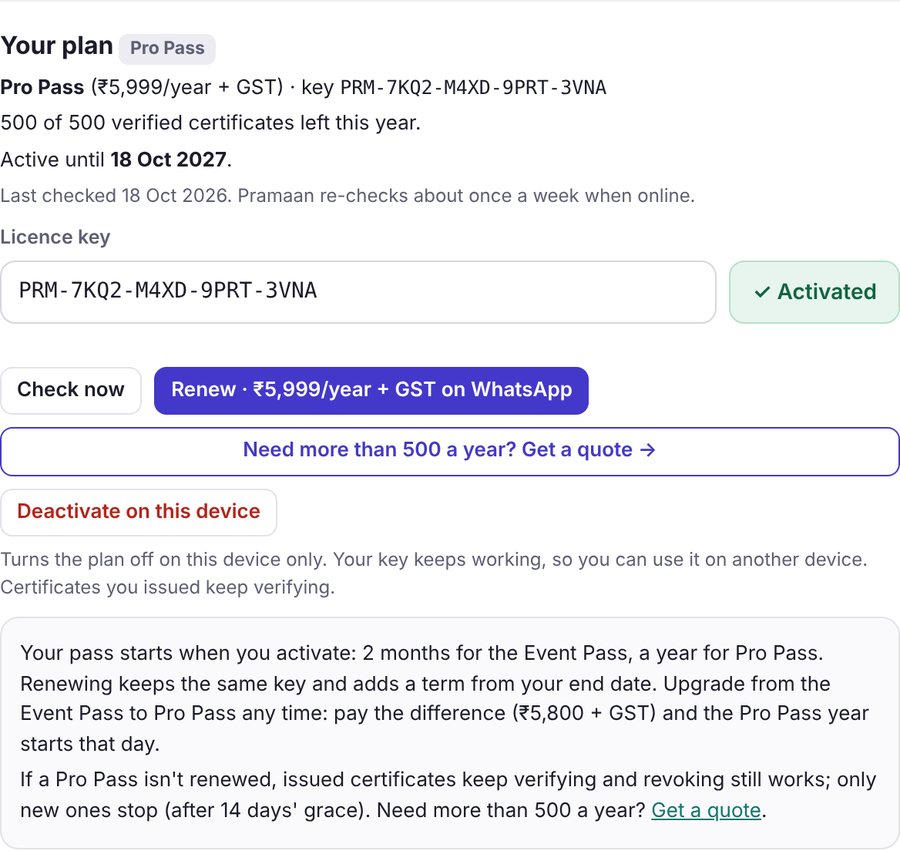
Your key arrives by email from hello@stroban.app (check spam the first time). It looks like PRM-XXXX-XXXX-XXXX-XXXX.
- Open pramaan.stroban.app and tap ⚙ Settings at the top right.
- Type your institution's name in Your institution. It prints on the certificates and shows on verify pages.
- Paste the key into Licence key and tap Activate. The button turns into a green ✓ Activated tag, and the badge at the top shows your plan.
Your pass starts on the day you activate: 2 months for the Event Pass, a year for Pro Pass. To use Pramaan on another computer, paste the same key there.
2Design the certificate
- On the 1 Design tab, tap ⬆ Upload background and choose your certificate design (PNG, JPG or PDF) with the name area left blank. Best size: A4 landscape at 3508 × 2480 px. To practise first, tap Use sample.
- Use Add a field on the right to place Name, Designation & affiliation, Course, Date, Certificate ID, QR code, Signature, Logo or your own Text.
- Drag a field to move it; drag its corner to resize it. Tap a field to change its text, font, size and alignment in the panel on the right.
- To remove a field, tap it and press Delete in that panel. Duplicate makes a copy.
- Under the certificate, set Preview with to Longest name to check that long names still fit.
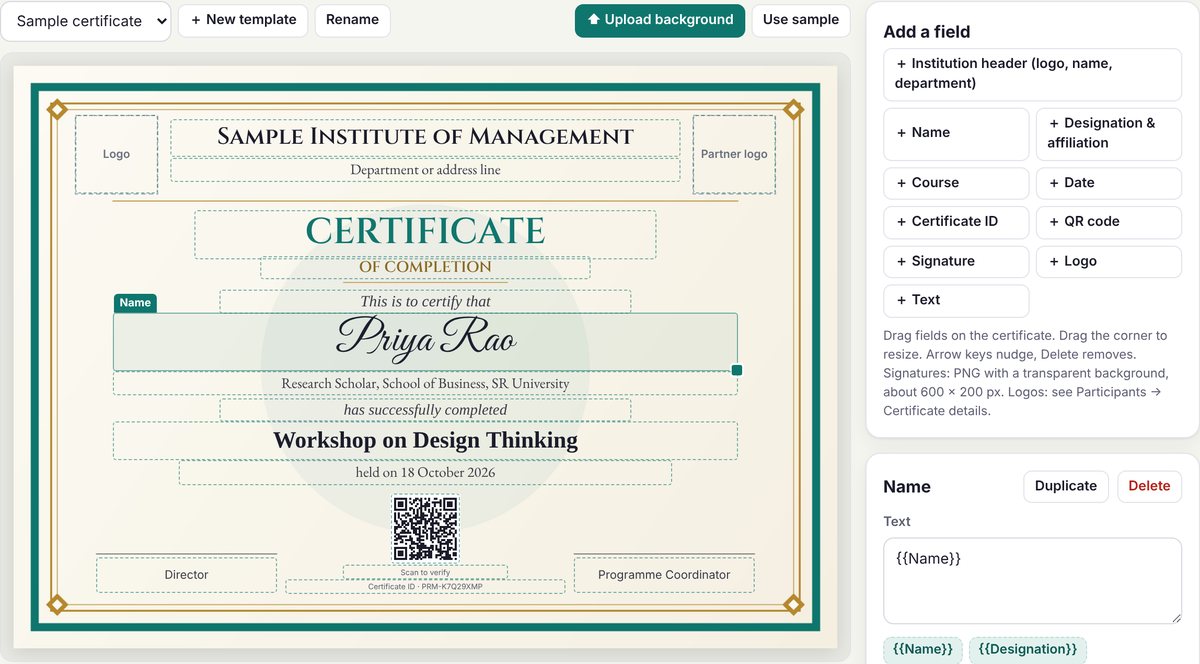
{{Name}}, {{Course}}, {{Date}}, {{Issuer}}, {{ID}}. Any column in your participant list works too, such as {{Roll No}}. With the Event Pass or Pro Pass you can keep several templates (+ New template).3Add your logo and institution
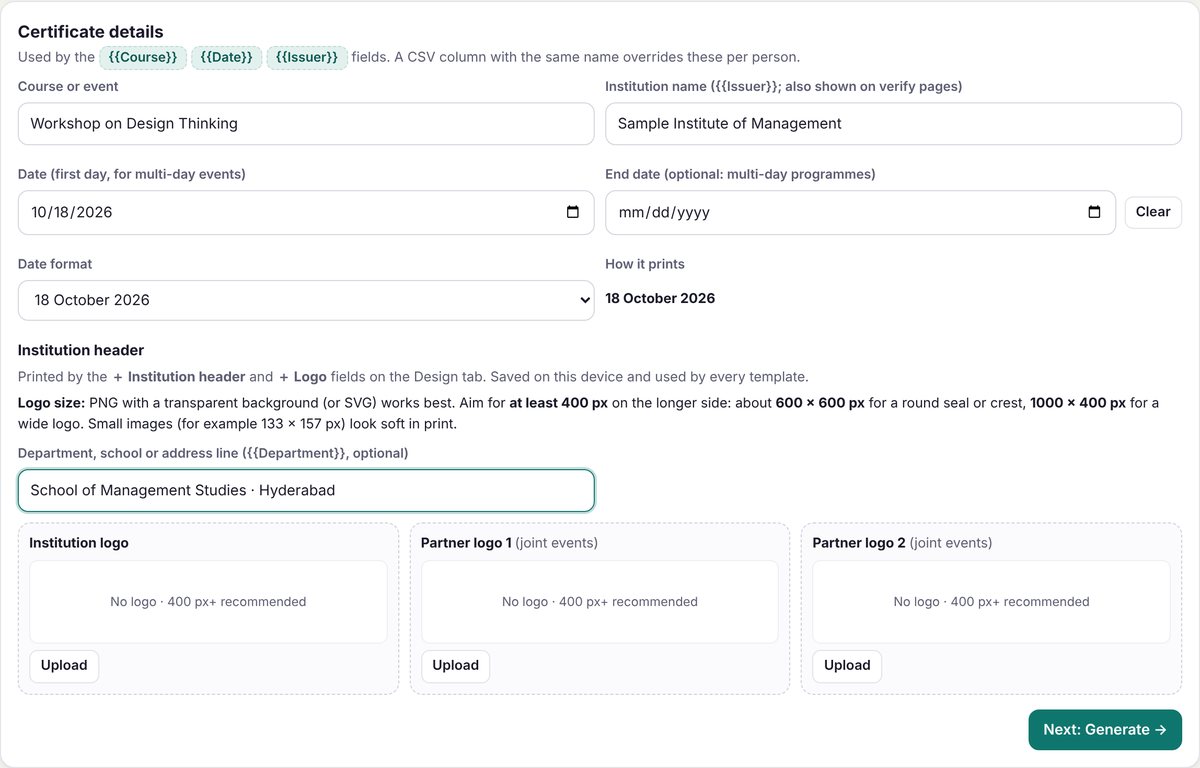
- Go to 2 Participants and scroll to Certificate details → Institution header.
- Upload your institution logo and, for joint events, up to two partner logos. A PNG with a transparent background, at least 400 px on the longer side, prints best.
- Add the department or address line if you want one under the name.
- Back on 1 Design, place them with + Institution header (logo, name and department together) or + Logo.
Logos are saved on each device, so each colleague who uses Pramaan uploads them once.
4Add participants
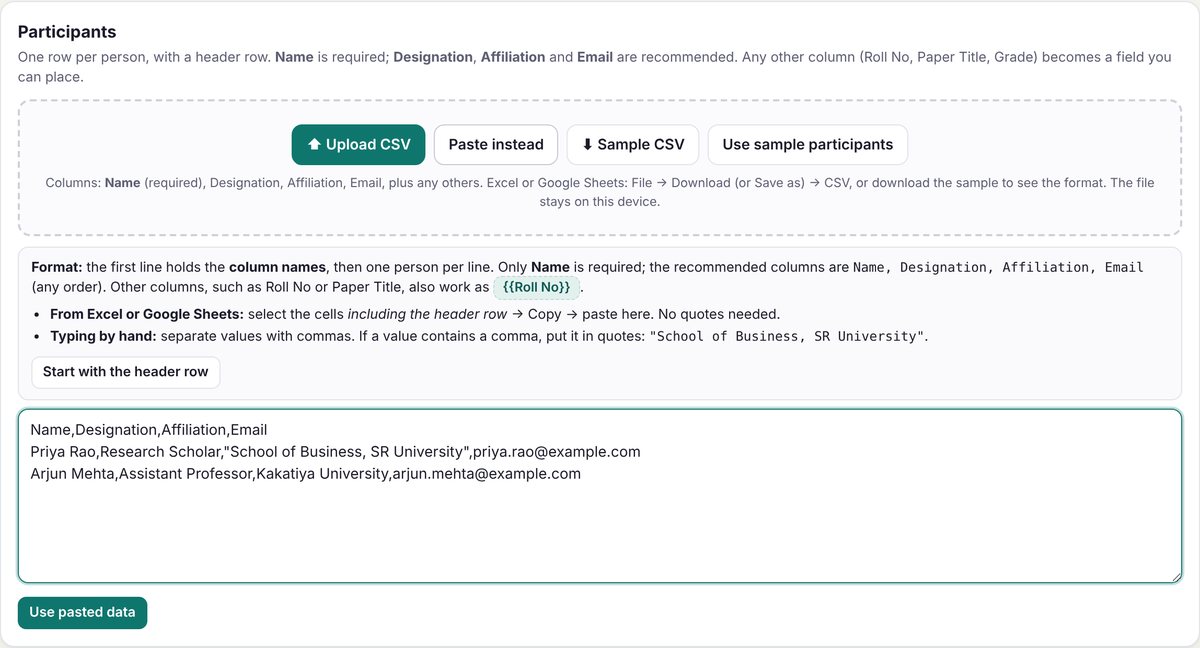
One row per person. Name is required; Designation, Affiliation and Email are recommended, in any order.
- On 2 Participants, tap ⬆ Upload CSV. From Excel or Google Sheets: File → Download (or Save as) → CSV.
- Or tap Paste instead, copy the cells from your spreadsheet including the header row, paste them, and tap Use pasted data.
- Check the column choices and the preview table. Rows without a name are skipped, and Pramaan warns you about repeated names.
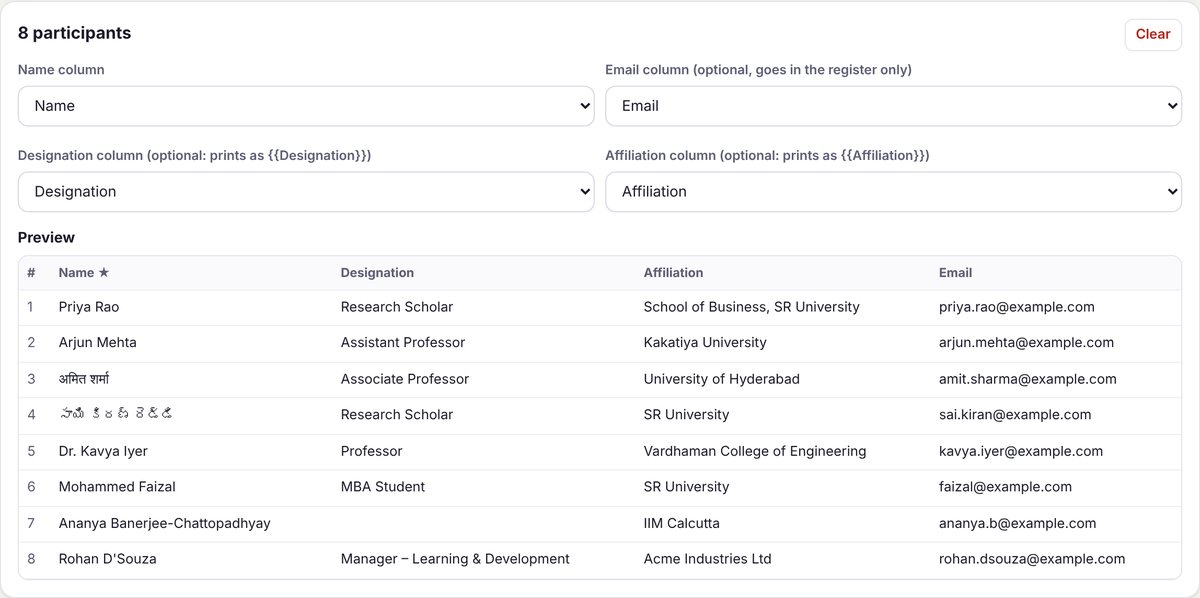
The list stays on this device until you tap Clear, so you can come back to it later.
5Fill in the certificate details
Under Certificate details on the same tab:
- Course or event and Institution name: printed by
{{Course}}and{{Issuer}}. - Date: the first day. For a multi-day programme add the End date and it prints as, for example, "24–26 September 2026".
- Date format, with How it prints showing the result.
A column with the same name in your list (for example a Course column) overrides these for each person.
6Generate the certificates
- Open 3 Generate. The top row shows the template, how many certificates will be made and how many you have left (this month on Lite, on pass for the Event Pass, this year for Pro Pass).
- Read the yellow box: it lists anything missing, such as an empty logo or a field with no matching column.
- Certificate ID prefix Pro Pass: type your own prefix in the box on the right, under Your prefix, for example
SIM-2026. IDs then look likeSIM-2026-K7Q29XMP. - Quality Pro Pass: Normal suits screens and office printers; High (300 dpi) is for professional printing.
- Tick Print PDF Pro Pass for one file with every certificate, one per page.
- Tap Generate … certificates. With Pro Pass, the IDs are registered first, then the PDFs are made on your device.
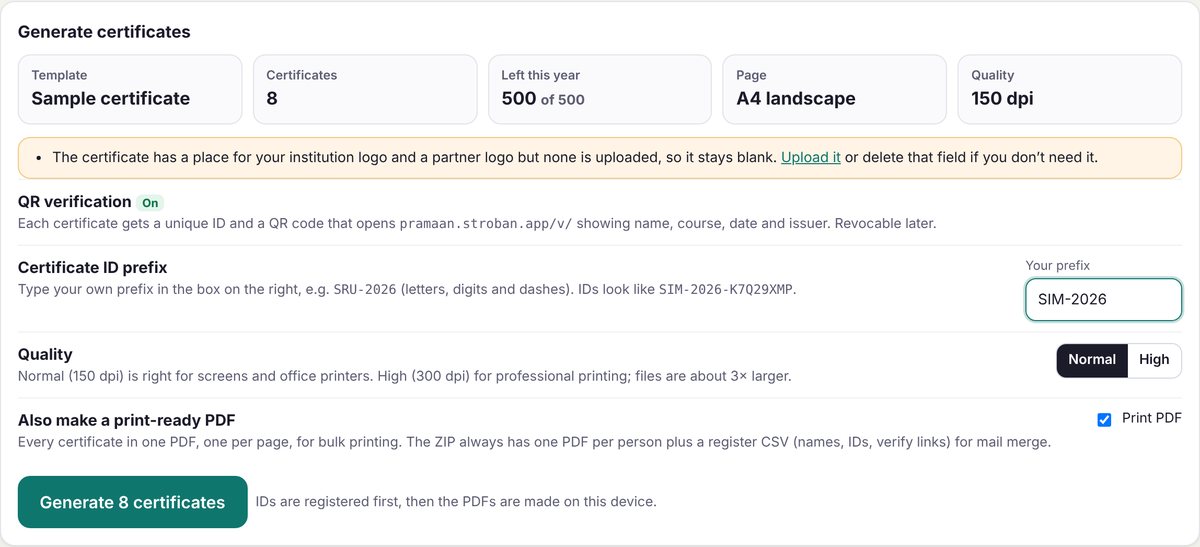
You get a ZIP with one PDF per person, plus (with the Event Pass or Pro Pass) a register CSV listing every name and ID, and with Pro Pass the verify link of each certificate. Keep the register CSV: it is your copy of every verify link, handy for mail merge.

7Verify and revoke Pro Pass
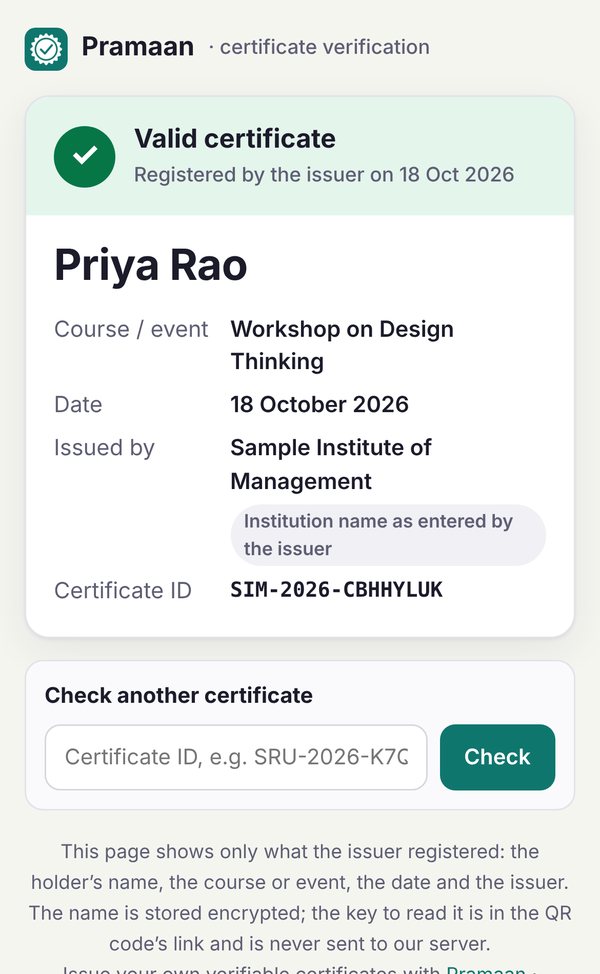
Each certificate's QR code opens its own page at pramaan.stroban.app/v/, showing Valid with the name, course, date and issuer. Anyone can also type a certificate ID there; the name stays hidden until they type the printed name, which Pramaan then checks.
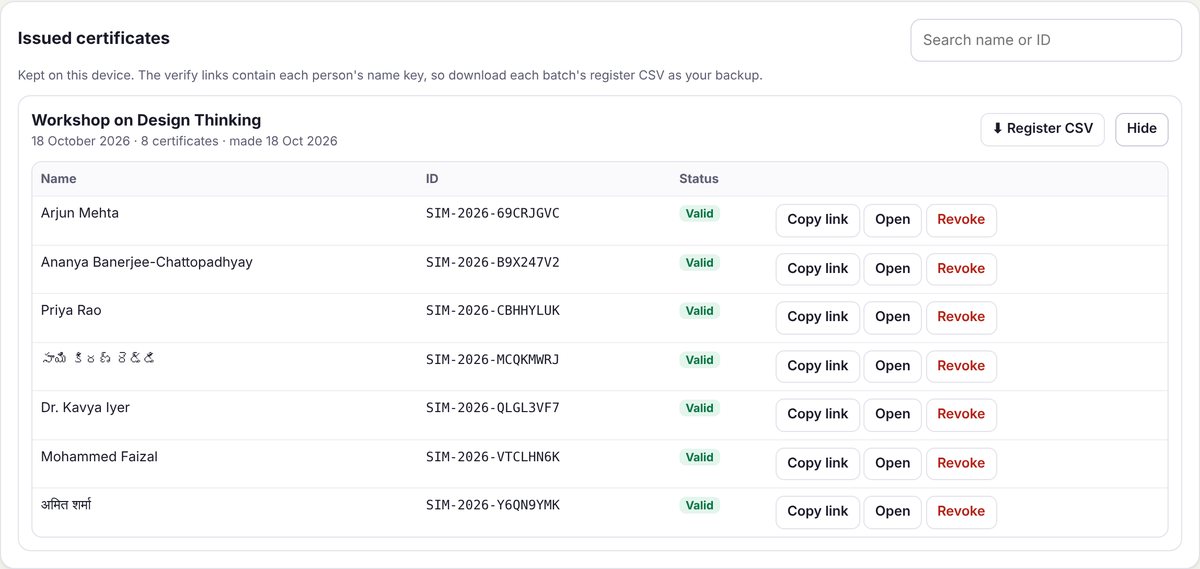
On the ✓ Issued tab you can:
- search by name or ID;
- Copy link or Open a certificate's verify page;
- Revoke a certificate issued in error, with a reason shown on its page, and Restore it later.
A change shows on the verify page within a minute or two. The Issued list is kept on the device that made the batch; the register CSV is your backup.
8Renew, upgrade and get help
- Reminders. We email you 7 days before an Event Pass ends and 14 days before a Pro Pass ends. Tap Renew in Settings to message us on WhatsApp; renewing keeps the same key and adds a full term from your end date.
- Upgrade from the Event Pass to Pro Pass any time: pay the difference (₹5,800 + GST) and your Pro Pass year starts that day. After we confirm, tap Check now in Settings.
- If a Pro Pass isn't renewed, every certificate you issued keeps verifying and you can still revoke; only new verified certificates stop, after 14 days' grace.
- Need more than 500 certificates a year? Tap Get a quote in Settings or on the plans sheet for an institution plan.
- Shared computer? When you finish, keep your register CSV, then use Settings → Deactivate on this device and Delete all local data.
- Install it. Settings → Install Pramaan adds it to your home screen or desktop.
+91 83673 54510
hello@stroban.app
Tap Feedback in the app. If we use it, you get a reward.